KeyBuild 1.039 [Build 12] 

Release Notes (right-click in this window to print)


KeyBuild 1.039 Changes


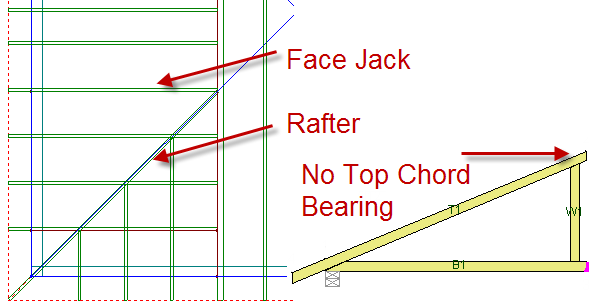
UPDATE!   Jack Truss Top Chord Bearing

In previous versions of KeyBuild when you had a hip-end with rafter and sub-girder corner sets the closed face jack that intersects the master hip girder at the haunch, where the corner rafter also intersect the master hip girder, the face jack was picking up the rafter as a top chord bearing.  This face jack should only have a bottom chord bearing on to the master hip girder at this location.  This issue has been fixed.


Truss Labels

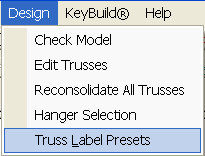
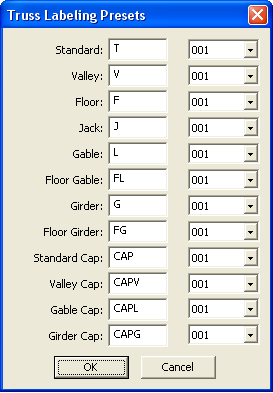
Truss Labels in KeyBuild have had "hard-coded" label prefixes and numbering format.  For example hip-end jacks were always labeled J###, truss gables L###, and standard trusses T###.  A new feature allows you to define the label prefix and numbering format for each truss consolidation group.  Access the new Truss Labeling Presets dialog box via the new Truss Label Presets command in the Design pull-down menu.


Once in the Truss Labeling Presets dialog box type in the label prefix you would like Edit Trusses to use for each truss consolidation group.  The label prefix can have multiple characters.  Then select the label numbering format choosing; 1, 01, or 001.  When finished click OK to save changes or Cancel to disregard the changes.     


Overhangs Automatically 'Healed' at Corners

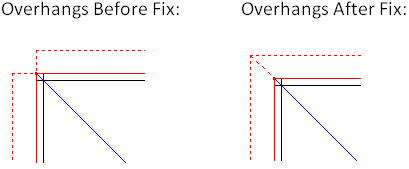
The KeyBuild program has logic to heal, or join overhangs at inside and outside corners.  This logic is called at specific times and users have noticed a couple cases where overhangs were not healed when they should have been.  Overhangs will now automatically be healed:

  • Anytime the Roof Planes | Extend Manual command is exited.

  • Anytime an overhang is input using the Entity Input Macro command.  Drawing point to point, selecting a wall to add an overhang, and selecting a line to add an overhang.
 

Overhangs Bug Fix

In the previous version of KeyBuild a bug was introduced where overhangs placed in a location above an unassociated underlying plane could pick-up the underlying plane and result in the overhang having the wrong length.  This bug has been fixed.


Single Truss Reference Line Bug Fix

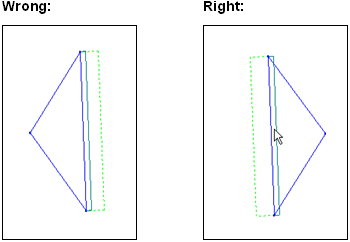
A bug has been fixed with editing trusses input using the Entities | Single Truss command.  When you input a single truss you choose a start point, an end point, and a reference line property (left, center, or right).  In previous versions when you selected one of these trusses, selecting near the trusses original start point, and then edited the trusses properties, a bug in the program could result in the truss being flipped to the wrong reference line side.  This bug has been fixed.


Entity Input Macro Bug Fix

In previous versions of KeyBuild, when using the Entity Input Macro (EIM) command found in the Macros pull-down and toolbar menus, if placing roof planes and overhangs using the Select Walls option in some cases the planes and overhangs would be drawn falling on the wrong sides of the wall.  The program was not properly looking for the selected wall's reference line and instead used the reference line setting in the EIM dialog box.  This bug has been fixed.


KeyBuild 1.038 Release Notes


Atlantic Hip-Ends

In previous versions of KeyBuild it was very difficult to input an Atlantic Hip-End.  The Hip-End Framer has been improved to now include Atlantic and Atlantic with Rafter Hip-Ends.


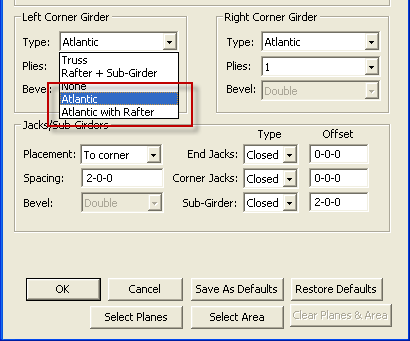
To input an Atlantic Hip-End draw a Hip-End line using the Entities | Hip Ends command along the bottom of the face of your Hip-End. When prompted with the Set Hip-End Properties dialog box select Step-Down for your Hip-End Type, and then select either Atlantic or Atlantic with Rafter in the Left and Right Corner Girder pull-down menus.  When you select one of the Atlantic options the Sub-Girder type and offset fields will become enabled, make sure to review these properties.  When finished click the OK button, you will be prompted to select a framing area and the right, face, and left roof planes.


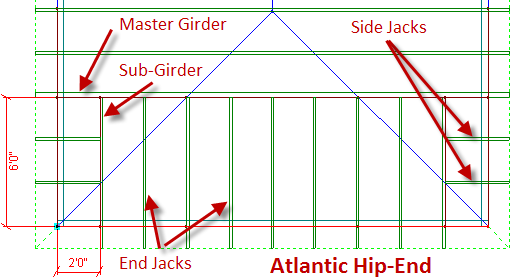
With the Atlantic option your hip-end will be framed similar to the picture below, with the end jacks and sub-girder (or first end jack from each corner) connecting to the master girder and the side jacks connecting to the sub-girder. 


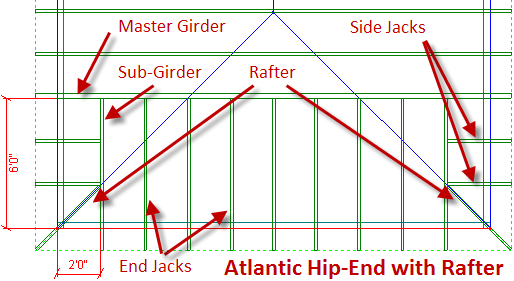
With the Atlantic with Rafter option your hip-end will be framed similar to the Atlantic option but with the addition of a small rafter member that runs from the end of the overhang at the corner to the sub-girder (or first end jack).


Note support for the Atlantic with Rafter is still in progress.  If you get insufficient bearing errors when running Edit Trusses this is because the rafter does not yet pick-up bearing at the wall corner.  Support for the rafter will be released shortly.


Top of Plate Toolbar

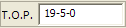
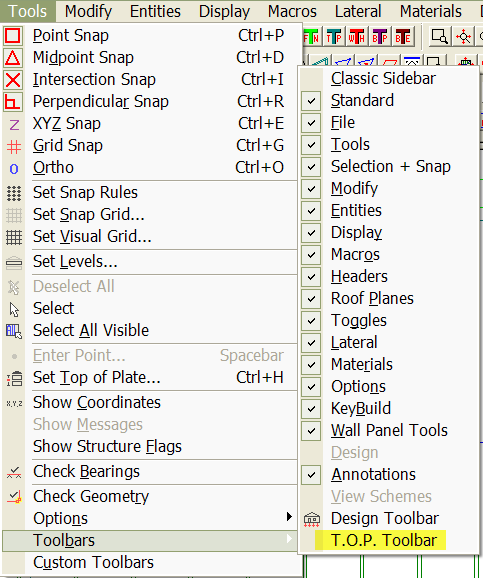
In previous versions of KeyBuild, it was difficult inputting entities at the correct top of plate.  To address this problem we have created a new mode-less and dockable Top of Plate Toolbar.  This new toolbar displays the working Top of Plate (TOP) and allows you to edit the TOP value directly from the toolbar.

The new TOP toolbar is accessible via three options;
a.    Tools => toolbar
b.    Right click main screen, Tools => toolbar
c.    Right click on a toolbar


The toolbar will always display the absolute TOP, and never relative TOP, regardless of what input mode you are in.  The TOP value is editable in all modes that the current “Set TOP” button is available and available when the Entity Input Macro is active. 

Entity Input Macro Mode

TOP is editable even after a start point has been defined.  As with all other properties in EIM, the entity(s) should be input at the TOP that is set at the time of defining the second point.  The same TOP should be applied to both start and end points of the entity(s).

Standard selection mode
Standard input mode as long as a start point has not been defined.

When TOP is modified, it will change the working TOP for the current active level and the new TOP will be reflected in the Change TOP command as well as the Set Levels dialog.  When the toolbar is not editable, it will be grayed out, but it will still display the current TOP.  Escape will cancel out of the TOP toolbar and reset the  value to the previous setting.  Once the new TOP is entered, it is set by clicking (left click or right click)  outside of the toolbar or pressing the tab or enter keys.  
“Ctrl h” is the hotkey that puts focus on Set TOP toolbar and highlights current value.


Save As KeyBuild file structure

Old Save As file structure

In previous versions of KeyBuild, the Save As command in KeyBuild only copied the .L## and .LAY files along with the job's sub-folder. 


If the job was saved in a folder with the EXACT same name as the KeyBuild Job files (LAY, L##), the location where some of the job files typically saved in the job sub-folder changed, and certain files where stored at the same level in the file structure with the KeyBuild Job Files.  Within this old file structure, job files that were in the same folder with the KeyBuild Job files were not copied with the Save As command.  Files not copied include but were not limited to truss files (ITR, ITF, KTR, KTF, KXR, KXF, LDG, etc), Panel files (CUS, COS, LIN, etc.), Plot files (MDL, SHT, TXT, etc.), and other.


New Save As file structure

Now, when the Save As command is called KeyBuild first determines if the job is saved in a folder with the exact same name.  If the KeyBuild Job Name is different than its parent folder name, Save As should work exactly as it does today.  If the KeyBuild Job Name is exactly the same as its parent folder name, Save As will work differently. 


When the KeyBuild job is in a parent folder of the same name:

  • The parent folder will be copied and renamed to the Save As name. 
  • ALL files and sub-folders within the parent folder will be copied and transferred during Save-as.  This includes non-Keymark files such as scanned blueprints, saved PDF’s, etc.
  • The KeyBuild job files (LAY, MAY, L##, M##, BAY, B##, etc.) will be renamed to the Save As name.
  • The job sub-folder in the copied parent folder, one layer deeper in the file structure with the same name as the KeyBuild job, will be renamed to the Save As name.
  •  Any file paths that are currently updated with the Save As command in ancillary files will update to the new paths.  For example the Panel file L##_PLAN.TLC.

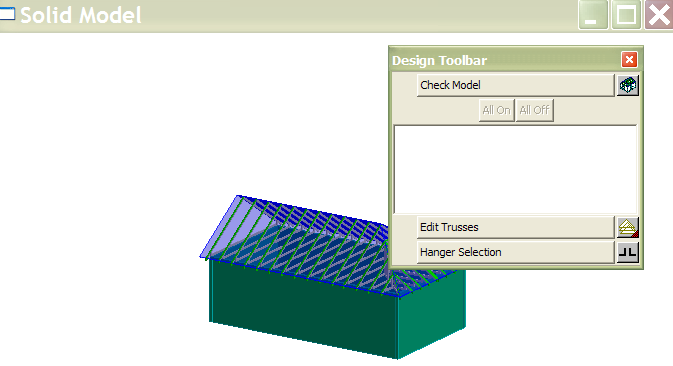
Design Toolbar visibility with Solid View

The design toolbar can now be placed on top of Solid Model for more visual control.


KeyBuild 1.038 Bug Fixes


Floor Panel Deck Plot Crash

The program would crash when you tried plotting selected panels in panel deck mode.  This bug has been fixed.

Step-down Hips wit Sub-Girders

Step-down hips with sub-girders can now be exported to the ITR files and pulled into KeyTruss. 

Single Input Truss Consolidation

Manually entered trusses with no distributed loads and with the load tolerance set to 100% are now consolidating if they are the same type and share the same profile.

Insufficient Bearing Errors on California Hip-end Rafters

Changes have been made to "Who Bears on Whom" rules so a hip-end rafter that goes over a master hip-end girder, not stopping at the face of the master hip-end girder, will now pick up the master hip-end girder as a bearing.

Truss Span 

In previous versions of KeyBuild the truss spans in edit trusses was reporting the span of the trusses plus the overhang length.  Now the truss span does not include the overhang length.

Jack Truss Consolidation

Jack trusses not getting consolidated because of small rounding differences during load distribution has been fixed.

Entity Input Macro (EIM) 

  1. Bugs in the Entity Input Macro roof planes and trusses default presets and walls default presets have been fixed.
  2. Changes have been made to the EIM so that any time you modify the wall width in the walls group box, the seat cut value in the ceiling planes group box is also modified.  You can still edit the seat cut value after it has been changed, but it will be overwritten anytime wall width is modified.


Keymark Enterprises, LLC


Copyright© 2010 Keymark Enterprises, LLC ALL RIGHTS RESERVED


Keymark®, KeyBuild®, Model™, Structure™, KeyBeam®, KeyComm®, KeyLat®, KeyMan®, KeyOpt®, KeyPanel®, KeyPlan®, KeyPlot®, KeyTruss®, KeyUp™, KeyWind™, and KeyBuildCAD™ are trademarks or registered trademarks of Keymark Enterprises, LLC